If Lexacom requires reinstallation following a PC replacement, system upgrade etc. it can be reinstalled free of charge by the Lexacom Helpdesk or via IT if confident to do so. PC Admin Rights will be needed in order to install Lexacom 3.
Please contact the Lexacom Helpdesk to ensure the most recent version of our Installer is being used by IT and consider the below details regarding your Lexacom Database
If the Installer is earlier than 3.10.6.0 Lexacom will not correctly update or benefit from subsequent feature development and important fixes.
STEP ONE – BEFORE YOU BEGIN
Before you begin the re-installation of Lexacom 3 onto a new desktop machine, you must first document the location of your dictation shared folder. We will need this location a little further along in the re-installation process.
If you already know the location of your Lexacom data folder, or if the site is using Lexacom Connect, move ahead to Step Two.
If you are unsure as to where this folder is, you can find the location from your old installation of Lexacom as follows –
Go to MY COMPUTER and open WINDOWS EXPLORER
Locate the address bar at the top of the window and enter the following dependent on your operating system
Windows 7/10 – C:\PROGRAMDATA\APROBRIUM\LEXACOM3
Windows XP – C:\DOCUMENTS AND SETTINGS\ALL USERS\APPLICATION DATA\APROBRIUM\LEXACOM3
Within this folder you should see a file called LEXACOM3.CFG
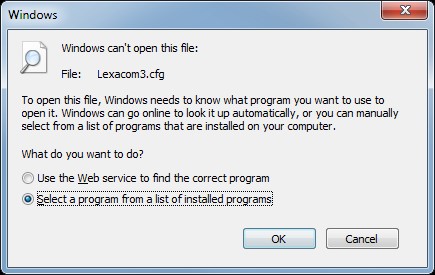
Double click that file and a dialog should appear stating “Windows can’t open this file”
Choose to “Select a program from a list of installed programs”
Select NOTEPAD from the list and click OK.
The file will then open and display something to the effect of –
You need to note down the location specified between the SERVERPATH tags
In this case: \\SERVERNAMEHERE\DICTATION\LEXACOM
This is the location we need after the Lexacom client is installed.
STEP TWO – INSTALLING THE CLIENT
After collecting the location of your dictation share, you will now need to install the Lexacom client software.
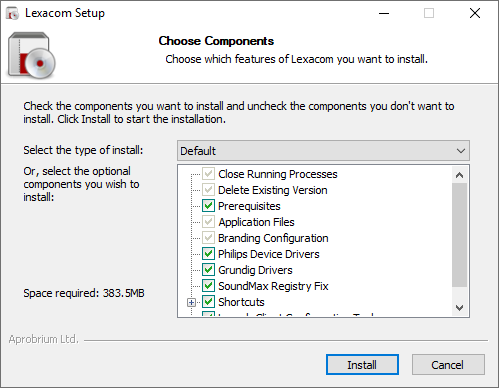
Double click on the Lexacom Client Installer file.
Click install to accept the default installation type.
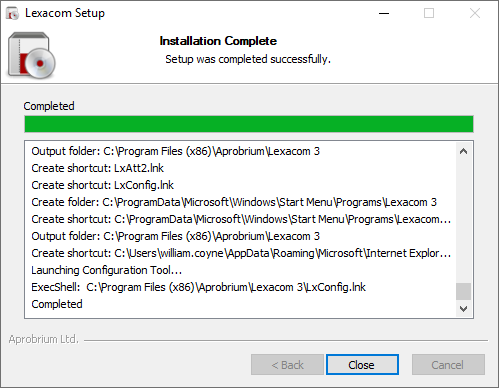
You will see the progress indicator move along and other windows open and close during the installation.
Once complete, click CLOSE
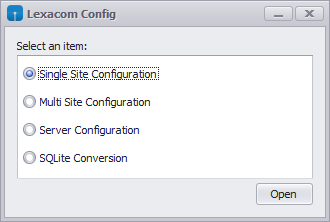
A new dialog will open called LEXACOM CONFIG
Unless you have been instructed to configure differently – for example, if the site is using Lexacom Connect – select SINGLE SITE CONFIGURATION and in the second window, leave the APPLICATION MODE as WORKSTATION